Problem
Resolution
Error Opening Port.
Windows lost connection with the printer. It may have lost power or been disconnected.
•Check the cables.
•Otherwise, it must be reconfigured:
1. Open The Edge and go to Administrative ► Configuration ► Tag Printer 1 Settings ► Port Number and expand that option.**
2. Select Test Ports and select your printer or the USB port the printer is attached to from the list. Notice that unavailable ports are grayed-out, making your choice easier.
Red light appears after print or calibration.
Tags or ribbon are not loaded correctly.
•Check to make sure tags and ribbon are properly loaded.
•Make sure the tags are lined up with the sensor.
•Make sure the holders are not too tight.
•Re-calibrate as described in http://docs.edgeuser.com/TIP-2014-043_GoDex_Printer_SetUp.pdf.
The ribbon sticks to tags.
Tags or ribbon are not loaded correctly.
•Check to make sure the ribbon is installed correctly.
•Unroll the ribbon a few inches and roll it back up.
•Unroll the tag roll a few inches and roll it back up.
Tags are skipping or not ejecting properly.
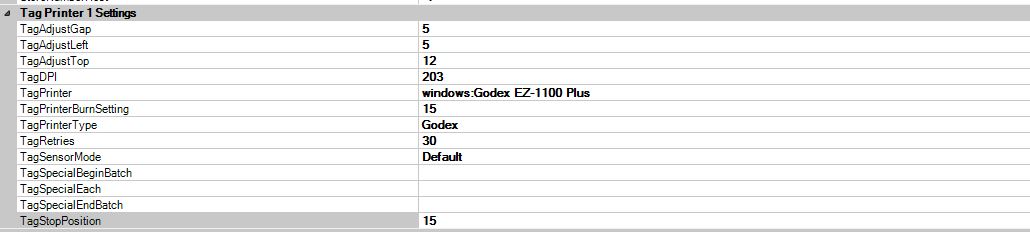
Configuration settings are not correct for the tag type.
•Adjust Center Adjustment and Tag Stop Position settings for this printer in The Edge Configuration window. Recommended settings are as follows.**
The printing quality is poor.
Configuration settings are not correct for the printer type.
•Increase the burn setting in The Edge Configuration window. Default is 15. The higher the value, the darker the print. We recommend adjusting in increments of 5.**