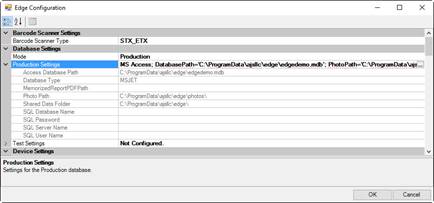
1. Select Start ► Programs ► Abbott Jewelry Systems ► Administrative ► Configure The Edge to open the Configuration window.
2. Find the section labeled File Locations. This is where you will specify the locations of the database file.
There are two sets of database settings: Production and Test:
•Production is for standard day-to-day operations.
•Test is useful for training and other non-production situations. When Test mode is in operation, a large watermark will appear on your screen.
|
|
•Be aware that store transactions conducted in Test mode will not be recorded to your production data. •If you’re planning an MSSQL database configuration, contact Abbott Jewelry Systems for special licensing and support. |
3. Click on the Production Settings line and use the browse button to configure database settings. The Database Settings window will appear.
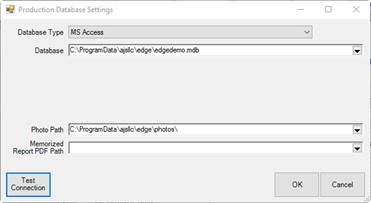
•The Edge installs two databases by default: edge.mdb and edgedemo.mdb.
•The default location of the database may differ depending on what version of Windows you are using. In most cases, the default location is \ProgramData\ajsllc\Edge.
|
|
On initial installation, Edge.mdb is a blank database suitable for a new store to begin operations. Edgedemo.mdb contains sample data and is suitable for training and practice. The first time you use The Edge, you may be prompted to select a database and whether that should always be the database to use. |
4. Select MS Access or MS SQL Server from the Database Type drop-down menu.
5. Browse for the database file using the Database drop-down menu. It will open a standard Windows file browser. This should be the path to the database folder created and shared on the server during server configuration. It should be something like \\[servername]\[sharefolder]\edge.mdb. In a network environment, this must be a shared folder with full read/write access.
6. Browse for the photo path file using the Photo Path drop-down menu. We recommend that you keep this in the same location as your database. This should be the path to the photo folder created and shared on the server during server configuration. It should be something like \\[servername]\[sharefolder]\photos. In a network environment, this must be a shared folder with full read/write access.
7. Select a location for memorized reports using the Memorized Report PDF Path drop-down menu. It should be something like C:\ProgramData\ajsllc\edge\PDF. We recommend that you keep this in in a subfolder of the folder that holds as your database. It should be something like C:\ProgramData\ajsllc\edge\PDF. In a network environment, this must be a shared folder with full read/write access.
8. Select OK.
9. Find the section labeled Station ID.
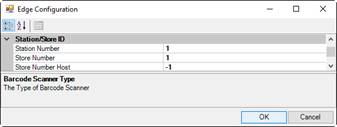
10. Change the Station Number to the next available consecutive number. Remember that your license defines how many workstations can access The Edge.
11. Enter the appropriate station and store numbers. Store Number must match your license; do not change this value without the assistance of The Edge Support Team.
12. Select OK to save your changes.
