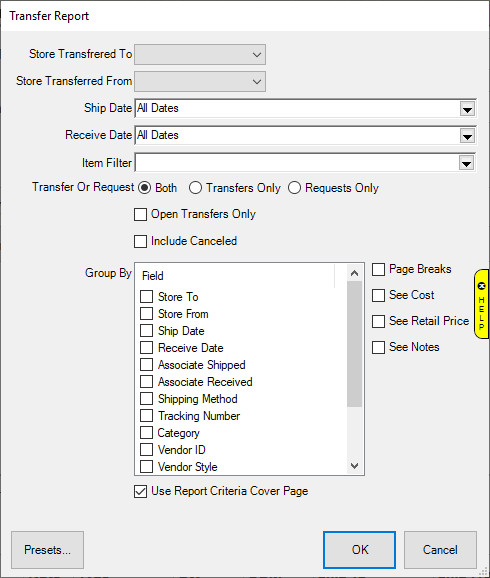
Fields and options include:
This report allows you to specify criteria and can be used to report on open, closed, and cancelled transfers. To run:
1.
Click Inventory > Inter-Store > Transfer Report. The
Transfer Report window will appear.
Fields and options include:
|
Store Transferred To |
Allows you to select destination store |
|
Store Transferred From |
Allows you to select originating store |
|
Ship Date |
Allows you to select by shipped date |
|
Receive Date |
Allows you to select by received date |
|
Item Filter |
Opens item filter allowing you to set specific item criteria to search for |
|
Transfer or Request |
Choose whether to display transfers, requests, or both |
|
Open Transfers Only |
Check this to only include open transfers |
|
Include Canceled |
Check to also include canceled transfers |
|
Group By |
Check options to group by them. Drag & drop items to the top of the list to sort by them. |
|
Page Breaks |
Check to include page breaks. |
|
See Cost |
Check to include cost. |
|
See Retail Price |
Check to include retail price. |
|
See Notes |
Check to include notes. |
|
Use Report Criteria Page |
Check to include the report criteria page |
2. Set desired criteria and click OK.
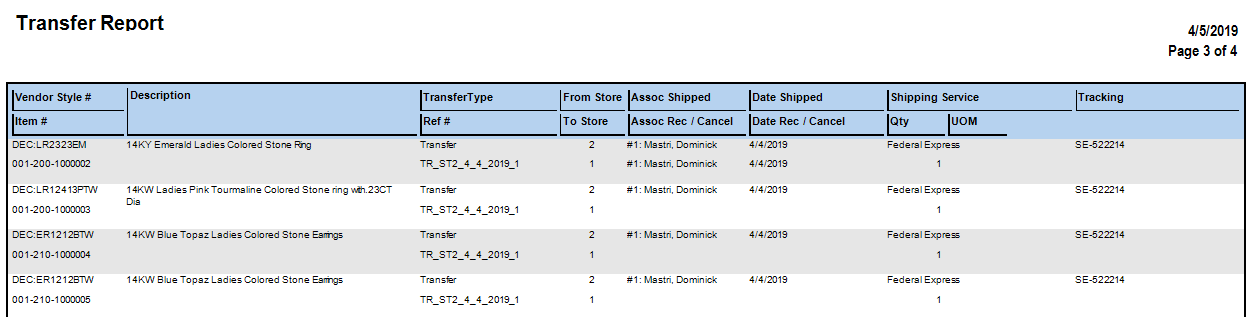
3. The resulting report will show each transferred item meeting your criteria.
|
Vendor Style |
The item’s vendor style number. |
|
Item # |
The item #. |
|
Description |
The description of the item. |
|
Transfer Type |
Whether this is a transfer or request. |
|
Ref # |
The transfer #. |
|
From Store |
The originating store. |
|
To Store |
The destination store. |
|
Assoc Shipped |
The associate that transferred the item. |
|
Assoc Rec/Cancel |
The associate that received or canceled the transfer. |
|
Date Shipped |
The date the transfer was shipped. |
|
Date Rec/Cancel |
The date the transfer was received or canceled. |
|
Shipping Service |
The shipping type. |
|
Qty / UOM |
For bulk, the shipped quantity. |
|
Tracking |
The shipping tracking #. |