The Reconcile/Finish button will appear after a new inventory has started. To reconcile the results after the physical count is complete:
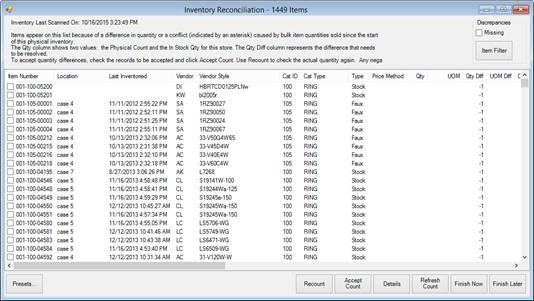
1. Select Inventory ►Physical Inv. ► Reconcile/Finish. A list of discrepancies will appear in the Inventory Reconciliation window.
The Inventory Reconciliation window brings up what should have been inventoried in the inventory period, but was not accounted for. It shows the location on record where available. Items appear on this list because of a difference in quantity for fine items or a conflict (indicated by an asterisk) caused by bulk item quantities sold since the start of this physical inventory. The Qty column shows two values: the physical count and the in-stock quantity for this store. The Qty Diff column represents the difference that needs to be resolved. Reconciliation options include:
|
Discrepancies |
Allows you to filter the type of discrepancy: Missing: All items already marked missing as part of this reconciliation Item Filter: Allows you to use an Item Find to specify the types of discrepancies to address. If this button is green, it means the filter is not using the default settings. | ||
|
Presets
|
Presets allow you to save and access commonly used output settings. See the section entitled The Edge Navigation Basics. | ||
|
Recount |
Recount on fine items will be marked as scanned and counted. Recount on a bulk item will return the bulk count window where you can change the location or adjust the total, as you would during initial scanning. This includes modified counts. This can only be done on one record at a time. | ||
|
Accept Count |
Accept physical count; if items are not found, they will be marked missing. This cannot be undone.
| ||
|
Details |
Shows the item record for the checked or highlighted item. | ||
|
Refresh Count |
Refreshes the reconciliation results. | ||
|
Finish Now |
Saves the actions and concludes the in-process physical inventory. If there are items left unresolved, an override warning will appear. Any remaining items will remain unreconciled. Remaining items are not marked missing. An inventory error will be created for all items that are not reconciled and will appear in the Errors report for you to resolve. | ||
|
Finish Later |
Saves the actions and leaves the reconciliation to be completed later. |
Color coding of records on the Inventory Reconciliation window is as follows:
|
Light Green |
Found items |
|
Misty Rose |
Missing items |
|
Beige |
Modified (sold bulk items since start or inventory) |
|
Blue |
Accepted count. |
2. To accept the quantity found during scanning, check the records to be accepted and select Accept Count. Use Recount to check the actual quantity again. Any negative difference accepted will result in an item marked as missing. An asterisk in the Conflicted column (not shown) with no difference listed will remain on the list. It is simply an indicator that a bulk item was changed during the physical inventory process. Layaways and special orders cannot be marked missing. If you accept the count on a layaway or special order item, The Edge will return a message to resolve the issue.
3. When all quantity differences have been resolved, use Finish Now to conclude the physical. Alternatively, Finish Later closes the physical inventory window so you may resume reconciliation at a later time.
4. These results will be available as described in the section entitled Physical Inventory Reports.
|
|
Reconciliation can take some time; the progress bar at the bottom of the window will indicate when the process is finished. Do not close the function until the process is complete. |

