Use the Partial Scan feature to count the inventory of a particular type, category, vendor, or just about anything for which you can do an item find.
If a full physical inventory or case count is in progress, you will be prompted to confirm that you wish to continue with the partial scan. If you do, note that items scanned will be counted toward the in-progress physical inventory. In addition, if a full physical inventory or case count is in progress, you will not be able to scan bulk inventory during a partial scan. This is because bulk quantities are being counted and will be reconciled when the physical inventory is finished. If bulk inventory items must be scanned, do so as part of the in-process inventory by selecting Inventory ► Physical Inv. ► Continue Inventory.
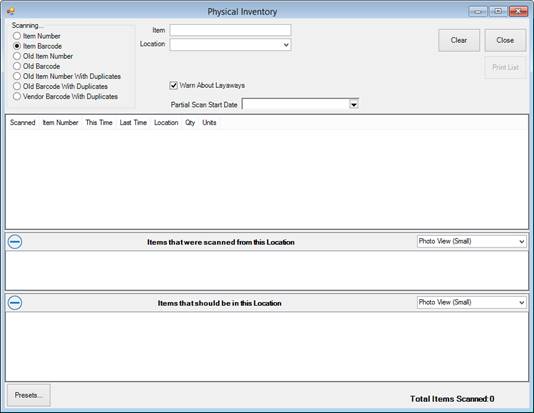
1. Select Inventory ► Physical Inv. ► Partial Scan. The Physical Inventory window for partial scan will appear.
The primary difference between the regular Physical Inventory window and the Partial Scan window is the date selection. With the Partial Scan Start Date, you can set a start date and time for identification and reconciliation purposes.
2. From the Location drop-down menu, select a location (optional based on your System Options).
3. From the Partial Scan Start Date drop-down menu, select a date/time of the partial scan. This will separate this scan from a scan conducted earlier. If no time is specified, it will assume 12:00 midnight of that day. If you wish to do a second scan on the same day, specify the date and time. That way, you can conduct a scan more than once a day, and The Edge will not warn of duplicates from a prior scan.
4. Scan items as desired. If you encounter an error or unexpected result, set the item aside for resolution during the reconciliation phase.
5. When all items are scanned, select Close.
6. To review results, use the reports as described in the section entitled Physical Inventory Reports. With partial scan, reconciliation is manual.
|
|
When an item is scanned, the location and or store will be updated to reflect the case and store from which you are scanning. A record will be written to the item history tab. If it is a different store, a message will appear to alert you. |
