The RFID feature works with specialized RFID hardware to provide inventory identification with just the sweep of a wand. Your Edge license must have RFID included and permissions in Administrative ► Associates ► Security permit use of RFID features. For a list of compatible RFID vendors, contact Edge Sales at sales@ajsllc.com. For details on setting up RFID, see the section in the User Guide entitled RFID.
To perform an inventory using RFID:
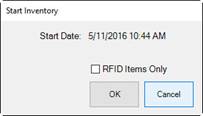
1. From the Inventory menu, select Physical Inv. ► Start Inventory. You will be prompted to confirm the start date.
2. Indicate whether you wish to scan only items with RFID. If you do, you won’t be counting bulk items, and you’ll only be able to count items that have an RFID tag.
3. Select OK. The Physical Inventory window will appear with RFID options at the top.

4. Select a device and select Start to begin scanning. The Physical Inventory window will populate as described above.
|
|
When you stop, be sure to select the Stop button on the Physical Inventory window to prevent the scanner from scanning in the background. |
5. Continue inventory.
